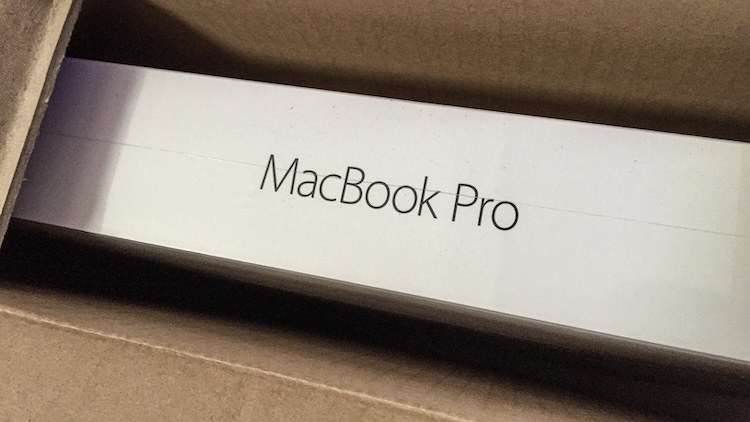
Quite often people will ask me “What is the first thing you do when setting up a new computer?” so I’ve decided to write a blog post for this as I frequently forget to mention things - this way nothing is forgotten and it’ll actually serve as a checklist for me in the future!
The post reads “New Mac” but it really applies to a fresh install of macOS. The same can be applied to used equipment that has been factory reset. Just a reminder - these are my personal preferences, you don’t have to do any of these.
- Install Updates
- Remove Items from Dock
- Resize the Dock
- Remove Suggested and Recent Apps from Dock
- Add Hard Disks to Desktop
- Show Status Bar on Finder
- Disable Click Wallpaper to Show Desktop
- Minimize Windows to App Icon
- Fix Screenshot Delay
- Install Homebrew
- Install MonitorControl
- Set up Printer
Install Updates
This one is simple, click the Apple icon at the top-left of the screen and open System Settings. Select General from the sidebar followed by Software Update and install any pending updates.
After that, again click the Apple icon followed by App Store and do the same thing.
It’s annoying when you’re in the process of setting up your new system and it asks to reboot or closes an app to update. If you start with this, you’ll have a much smoother experience going forward.
Remove Items from Dock
I recommend only keeping items in the dock that you use on a daily basis, by default it is a little cluttered and may include apps that you’ll never use. Right click on any apps and select Options > Remove from Dock to remove them. Note, you’re only removing the app shortcut from the dock and not the app itself.
Resize the Dock
I feel like the dock by default is huge and takes up a lot of screen real estate, especially on Macbooks with smaller displays. Hover over one of the dividing lines on the dock to display a double ended arrow, click and drag to make the dock a little smaller.
Remove Suggested and Recent Apps from Dock
This is the last dock item, I know what apps I’d like on the dock and don’t want the OS deciding for me. To disable this open System Settings from the Apple icon and select Desktop & Dock from the sidebar, turn off “Show suggested and recent apps in Dock”.
Add Hard Disks to Desktop
I like to see the Mac hard drive on the desktop, this used to be default years ago and I wish it still was. Open up Finder from the dock then select Finder > Settings from the menu bar and check the box next to Hard disks.
🛑 If you have network shares, you may be tempted to check Connected servers however I recommend not doing this and creating aliases instead. Let me know if you’d like to hear more on that.
Show Status Bar on Finder
This is another item that was standard on older versions of macOS that disappeared over the years, when I open a folder I like to see a count of items in it and how much disk space is free on the volume (hard drive, external ssd, sd card). To enable this open a Finder window and select View > Show Status Bar. I’d also recommend enabling the Path Bar too!

Disable Click Wallpaper to Show Desktop
Although this feature is helpful, I personally find it distracting. By default when you click on the desktop all windows disappear so you can see desktop items - but I don’t like it. 🤷♂️
Head to System Settings from the Apple menu again and select Desktop & Dock. Find “Click wallpaper to reveal desktop” and change to “Only in Stage Manager”.
Minimize Windows to App Icon
By default when you minimize an application it’ll take up additional space on the dock, in the same screen as the prior step enable “Minimize windows into application icon” to have them go into their own icon. It’s surprising this isn’t the default setting. 😕
Fix Screenshot Delay
I find the macOS built in screenshot and recording tool pretty good, but one minor annoyance is when a screenshot is taken it displays a thumbnail for a few seconds before the file is shown on the desktop.
To fix this, open the screenshot tool Cmd+Shift+5 select Options then “Remember Last Option” rather than “Show Floating Thumbnail”. Now when you take a screenshot the file is instantly available on the desktop.
Install Homebrew
I use Homebrew to install a lot of things on macOS via the terminal, it’s so much faster and convenient. You can install Homebrew by copying a single command from the Homebrew website.
Install MonitorControl
I use my Mac with a 38" LG UltraWide monitor that has pretty good built in speakers, MonitorControl is an app that lets you control your monitor volume and brightness using the standard keys. You can learn more on the MonitorControl GitHub page, and install via Homebrew!
Set up Printer
This is a boring one, I set up my printer. You know, the process of setting up and printing from a Mac works so well in comparison to Windows.
What about you?
If you’ve read this and disagree, please share your thoughts in the comments as others may find it helpful. There are a ton of videos on YouTube with the first 1,000 things people do when they set up a new Mac. These are the first that come to mind for me, how about you? 🤔